These instructions must be followed on every computer you wish to use our Broker Tools on.
Please Note: Internet Explorer 9.0 or Higher as well as Adobe Reader are required to use our Online System.
Interstate Insurance Management’s Broker Tools currently consist of The Small Business Property & Liability Application, The Commercial Auto Application, Online Certificates, Endorsements, and access to Mountain Top Premium Finance Account Information. For access to either of the applications or certificates please contact your underwriter. For access to Mountain Top Premium Finance account information please email service@mtpf.com.
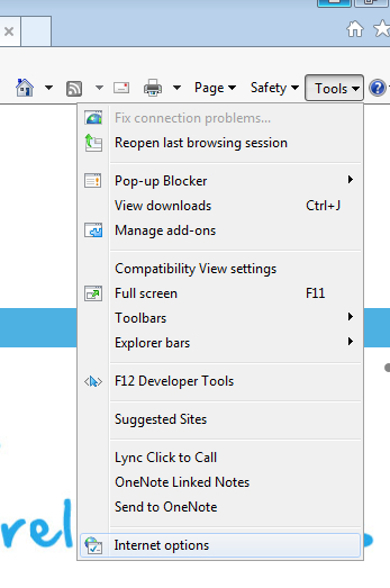
Click 'Tools', then click 'Internet Options'.
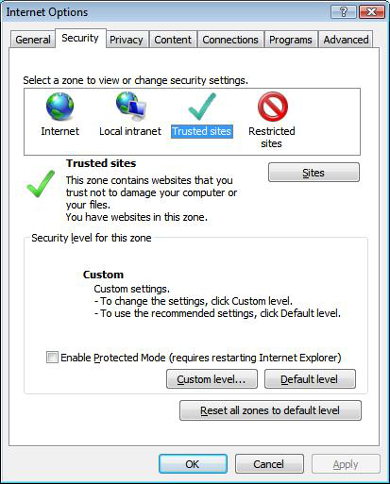
Click on the 'Security Tab', highlight 'Trusted Sites' and click the 'Sites' Button.
Click in the text box under “Add this Web site to the zone:” and type in the following addresses individually clicking add after each one.
https://www.interstate-insurance.com
https://iinsdb.interstate-insurance.com
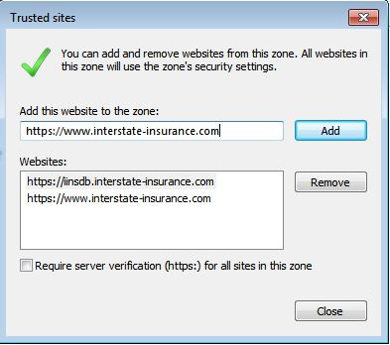
Click "Close".
Click "Custom Level".
Scroll down until you see "ActiveX controls and plug-ins".
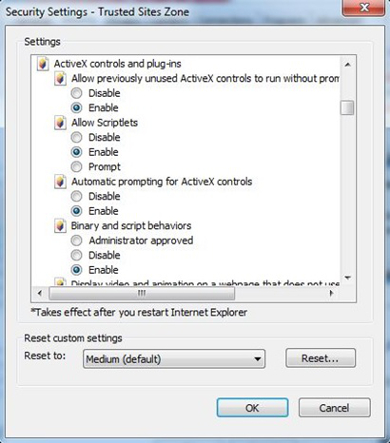
Go through the options and make sure all Items that include "ActiveX" in the header are set to enable.
Click "Ok".
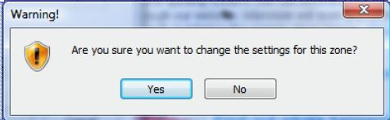
You may get a message like the one below asking you to confirm your security changes. You should click yes.
Click "Ok".
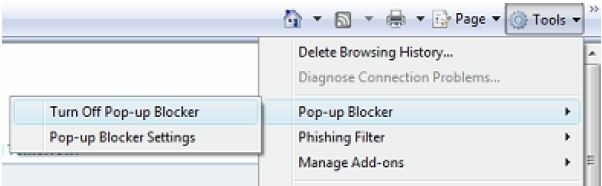
To turn off the Pop-up Blocker
Click Tools, Pop-up Blocker
If it appears as "Turn On Pop-up Blocker". Your popup blocker is already disabled
If it appears as "Turn Off Pop-up Blocker." Click on "Turn Off Pop-up Blocker"
Special Notes:
Some users may have popup blockers installed from 3rd party toolbars, such as Google or Yahoo. For our online system to function correctly you must have all popup blockers turned off or uninstalled.
Please email interstate.support@rtspecialty.com with any problems you may encounter.

